
Are you RAG-Ready? Why and How to Optimize Website Image Files for AI Engines, LLMs

Share this article:

Facebook
LinkedIn
X
Email
In 2026, the shift from “Search Engine Optimization” (SEO) to “Generative Experience Optimization” (GEO) is a major priority for businesses. Optimizing your images for Large Language Models (LLMs) isn’t just about appearance, it is also about ensuring your brand is discoverable, cited, and recommended in AI-driven conversations. It is also a critical element to most business’s content strategy in 2026.

Here are three reasons marketers and business owners are prioritizing LLM image optimization in their 2026 marketing strategy and action plans:

1. Visibility in Multimodal AI Search

Modern AI engines like ChatGPT, Gemini, and Google’s AI Overviews are “multimodal,” meaning they “see” images and “read” text simultaneously.

  • The Citation Advantage: If an AI assistant answers a query (e.g., “What are the latest office design trends in New York?”), it looks for images that act as proof.

  • Visual Real Estate: Descriptive file names help AI identify your charts or infographics as the “best evidence” for an answer, placing your brand at the very top of the AI response as a visual citation.

2. Higher Conversion Rates

Research from late 2025 indicates that AI search visitors convert up to 4.4x better than traditional search visitors.

  • Intent Matching: When an AI surfaces your product image because its metadata perfectly matches a complex user prompt (e.g., “show me a stainless steel food-grade conveyor belt”), the lead is highly qualified.

  • Reduced Friction: In e-commerce, optimized images enable “Snap and Search” features, where a customer can take a photo and be led directly to your product page.

3. Avoiding “Invisibility” in RAG Systems

Many businesses now use Retrieval-Augmented Generation (RAG) to provide answers based on their own internal data.

  • The “Context Gap”: If your images have generic names like IMG_001.jpg, the AI retriever will ignore them.

How to optimize image files quickly, accurately and efficiently?

WordPress website media libraries have hundreds if not thousands of files. Most might say this is a quick task with AI. So I put it to the test, but started even before the media library, because many images are first named and saved on a company file server, like Microsoft SharePoint and later uploaded to the website. If you use Microsoft, turns out that Microsoft Copilot cannot yet directly “reach out” and rename files on your local hard drive with a single click, but you can use it in combination with other Windows tools to achieve major efficiencies.

Here are a few methods to optimize image files before you even upload them to your media library when your goal is AI Engine Optimization (often called RAG-readiness or “LLM-optimization”).

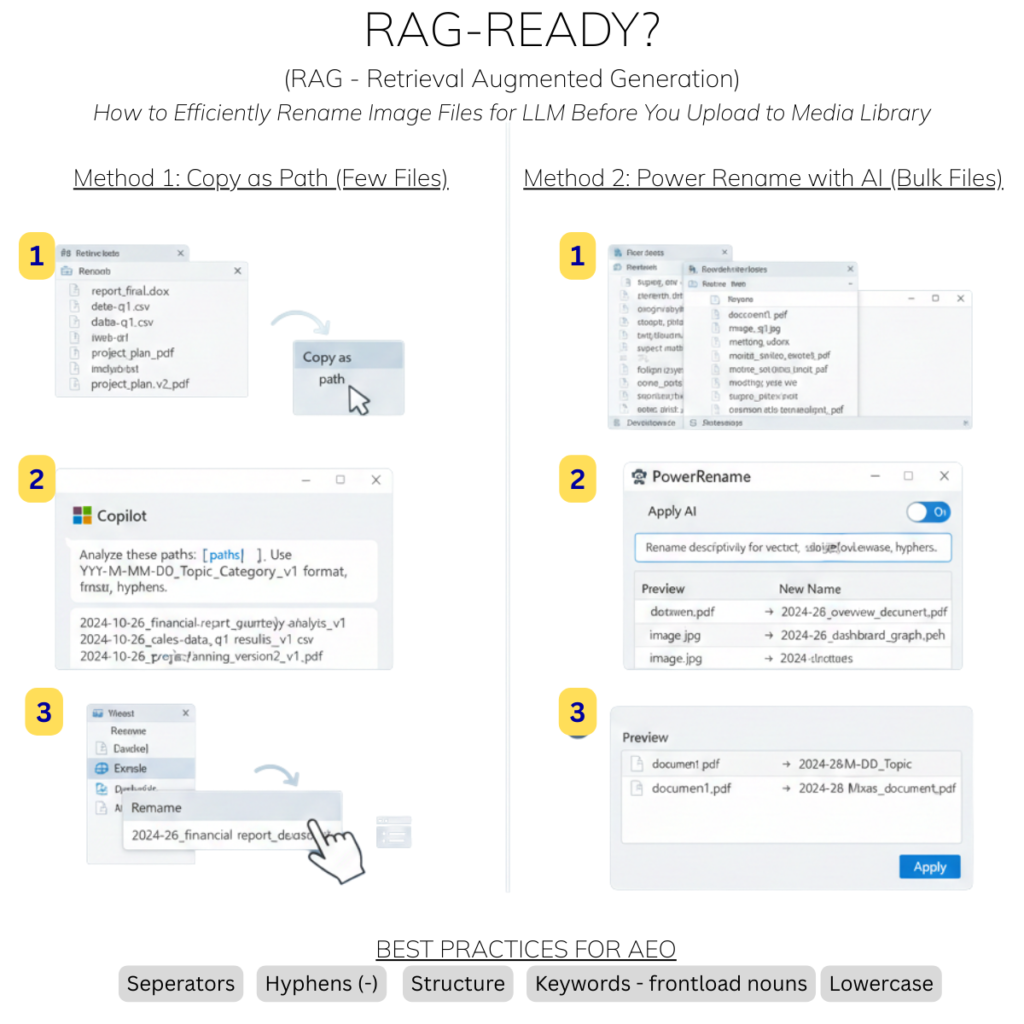
Method 1: The “Copy as Path” Strategy (Best for a few files)

This is the most direct way to get Copilot to “see” your files and suggest names based on their actual content.

  1. Select Files: In File Explorer, select the files you want to rename.

  2. Copy Path: Right-click and select “Copy as path.”

  3. Prompt Copilot: Paste the paths into Copilot (Web or Windows version) and use this prompt:

    “I am providing paths to several files. Analyze their names and suggest new names optimized for AI search and retrieval. Use a YYYY-MM-DD_Topic_Category_v1 format, use hyphens instead of spaces, and avoid special characters. Here are the files: [Paste Paths]”

  4. Apply: Once Copilot gives you the list, you will need to manually rename them or paste the list into a bulk renamer.


Method 2: PowerToys “PowerRename” with Copilot (Best for bulk)

If you have Microsoft PowerToys installed, it has a built-in AI feature specifically for this.

  1. Highlight Files: Select all files in your folder.

  2. Open PowerRename: Right-click and choose PowerRename.

  3. Use AI Suggestions: In the PowerRename window, look for the Copilot/AI icon (or the “Apply AI” toggle in the latest 2025/2026 versions).

  4. Describe the Goal: Tell the AI: “Rename these files to be descriptive for a vector database. Include the primary subject and date, use lowercase and hyphens.”

  5. Review and Apply: It will show a preview of the new names. Click Apply to execute the change in bulk.

Whether your work is part of website design and development or you are simply optimizing an existing website, the focus is typically on making file names highly descriptive and machine-readable so AI can quickly index and retrieve them.


Best Practices for AI Engine Optimization (AEO)

To make your files “AI-ready,” ensure the new names follow these standards:

Feature Best Practice for AI Example
Separators Use hyphens (-) or underscores (_). Avoid spaces. marketing-strategy-2026.pdf
Structure Use a Predictable Hierarchy (Date_Subject_Type). 2026-01-01_Project-Alpha_Internal-Specs.docx
Keywords Front-load the most important noun. budget-report-q1-finance.xlsx
Case Stick to lowercase to avoid case-sensitivity issues in some AI models. product-manual-v2.pdf
Cleanliness Remove “stop words” (a, the, of, for) and special characters. sales-data-january.csv (Not The Sales Data for January!.csv)

In sum, AEO/GEO optimization is critical. It is not yet a simple click of a button to rename image files in bulk, but it is vastly improved in the past few years. If you are building best practices for file naming, focus on using structure, keywords, and best practices for AI such as no ‘stop words’.

In future posts, we will dive into other areas of image file optimization, that are often performed after image files are already uploaded to your website media library. We will discuss schema markups for images, and good plugins for automating alt-text with AI vision and tools.

Share this article:

Facebook
LinkedIn
X
Email